


When Microsoft, after a decade-long hiatus, relaunched its now 40-year-old Flight Simulator series in 2020, it reignited interest in a genre that had long been a mainstay of PC gaming. It’s one thing to marvel at the graphics of the new Flight Simulator, though, and another to try to play the game with mouse and keyboard — or the Xbox controller. Few games benefit from custom hardware as much as flight simulators, and while you don’t have to go all out, at a minimum, you’ll want a basic HOTAS-style joystick. The next step up from there is a set of dedicated flight controls, throttles and rudders. The best-known names here are Logitech, with its affordable Flight Yoke System, CH’s Eclipse and Flight Sim yokes and throttles, Turtle Beach’s all-in-one VelocityOne, and Honeycomb’s Alpha Flight Controls XPC and Bravo throttle quadrant.
In the past, I only used an old joystick to play Flight Simulator, so when Honeycomb asked me to try their system (which, in the XPC version, now also supports the Xbox), I had a hard time turning it down. At over $550 for the yoke and throttle, we’re talking about a serious investment here — and once you get started, you’ll be tempted to get a set of rudder pedals, too. But in return, you get some very solid hardware that will let you take your flight sim experience to the next level.
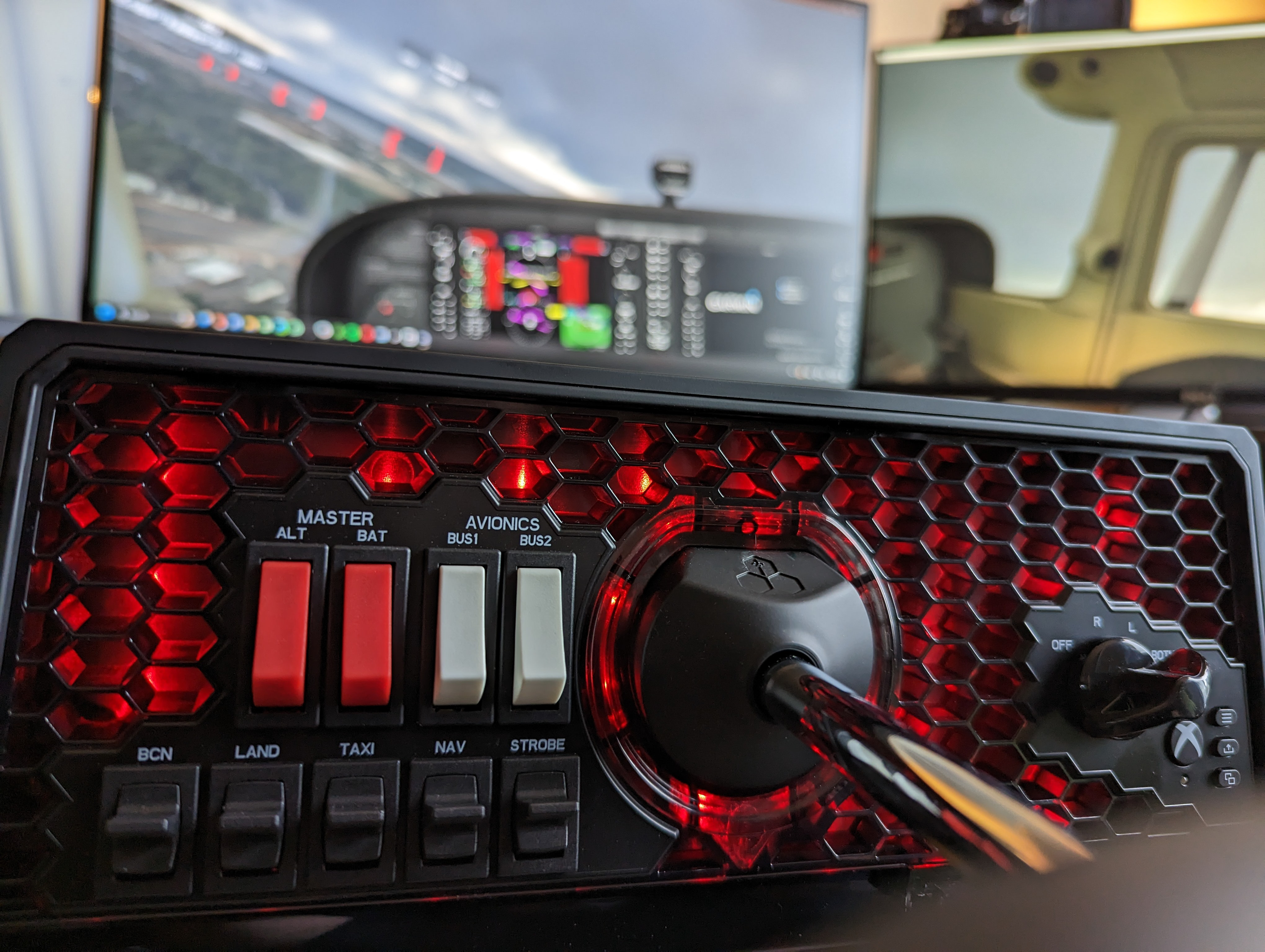
Image Credits: TechCrunch/Frederic Lardinois
I’ve tested these controls with both Flight Simulator and the recently released X-Plane 12 — both of which support it out of the box. I should add that I mostly fly single-ending piston planes, so that’s also what I mostly stuck with in my testing, though the Brave throttle quadrant comes with all of the levers and options for two-engine planes as well.
Indeed, it’s maybe the throttle quadrant that most changed my flight sim experience. It features a total of six levers and you can set it up for general aviation flying or for managing commercial jets with up to four engines and thrust reversers. The levers are easy enough to change if you tend to switch between those different modes. One nice feature here is that you can also change the level tension (using a knob on the side of the quadrant) to your liking.
Obviously, that’s what you would expect from a throttle quadrant, but to me, the game changers in day-to-day use were actually the dedicated trim wheel, flap levers and autopilot controls. I’ve always had the hardest time trimming planes in Flight Simulator using the buttons on my joystick, but the combination of the yoke — which takes some strength to pull and push — and the trim wheel make for a far more natural experience. The dedicated flap switch also helps here, and being able to control the autopilot makes all the difference. I don’t know about you, but using my mouse to try to set headings and altitudes in the 3D cockpit never worked well for me. Now, with its dedicated (and backlit) buttons and knobs, I use it far more.
Do I wish that the layout was more akin to the Garmin GFC 500 that I’m used to in the planes I typically fly? Sure — but it’s easy enough to get used to this layout, and the functionality is essentially the same — and using it doesn’t take me out of the sim experience. And that’s really what all of this is really about: being able to focus on the sim in front of you and not having to mess around with your mouse and/or keyboard shortcuts.
The throttle quadrant also features an annunciator panel with 14 warning lights for some of the most typical failures and seven programmable switches. By default, these are set up to control your airplane’s lights, but since the yoke also has those switches, I used one for the parking brake and mostly ignored the rest (though I’ve seen people use it to control some of the more advanced functions of their models).
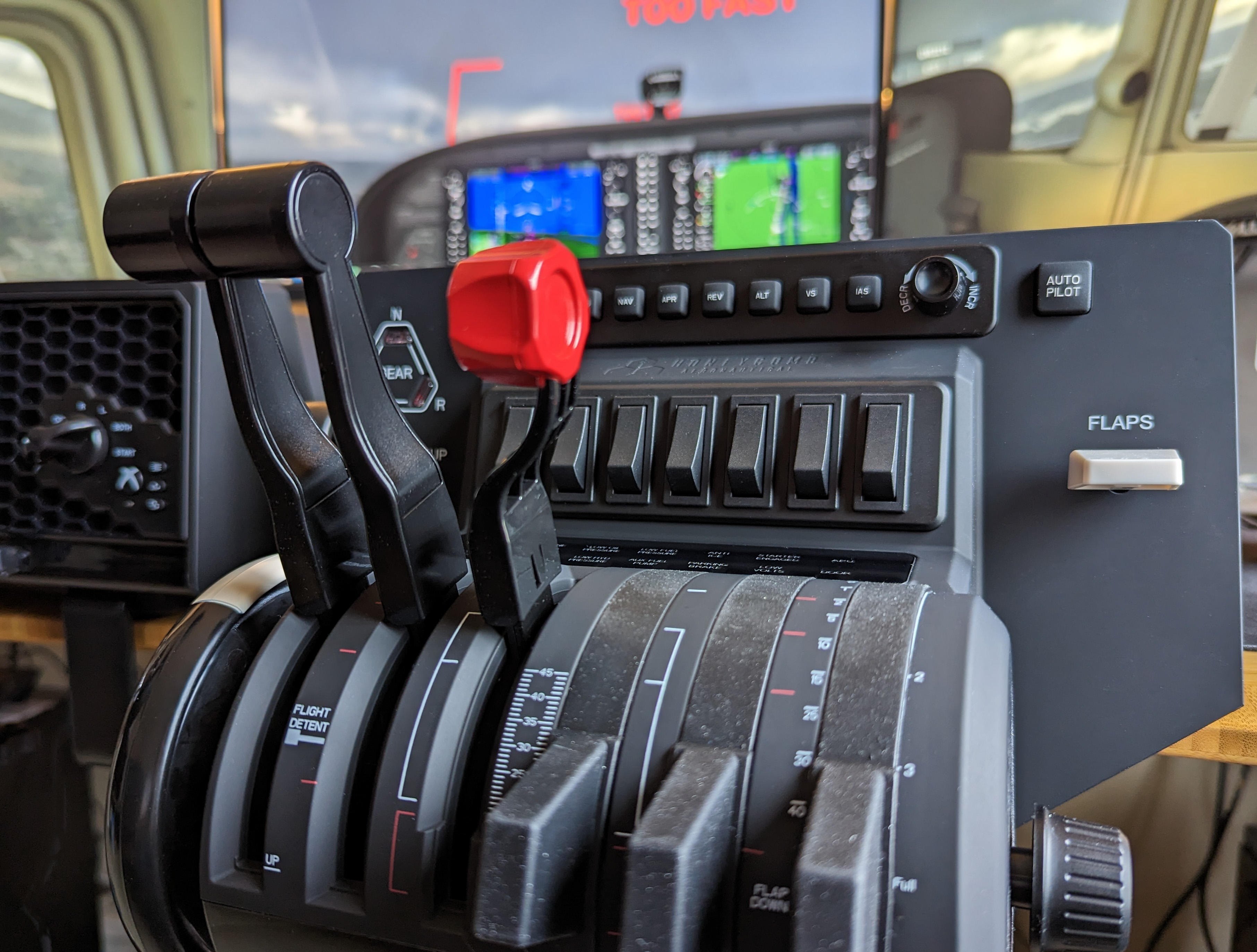
Image Credits: TechCrunch/Frederic Lardinois
The yoke is as sturdy as the throttle quadrant and features plenty of buttons to manage your flight sim experience. On the left handle, you’ll find an eight-way hat switch that defaults to controlling your views, a push-to-talk button and two vertical two-way rockers (which by default are set to controlling your trim). On the right handle, there are two horizontal rocker switches and two buttons. There are also five switches to control your lights and four to control your electrical system. And to round it all out, there is a five-position ignition switch so you can properly simulate starting up your engine (and testing your magnetos during your run-up, of course).
As I noted before, it takes a bit of strength to pull the self-centering yoke back (or push it) all the way to its stop. If you’ve ever flown a Cessna and tried to keep that nose wheel off the runway during a soft-field landing, it’s a bit like that. But that also means that you end up trimming the plane just like during a real flight simply because you’ll tire of working the yoke. It’s all about that immersion, after all.
There is a red LED backlight that makes the honeycomb-themed panel light up red. If that’s not your thing, you can tone the light down a bit or turn it off completely.
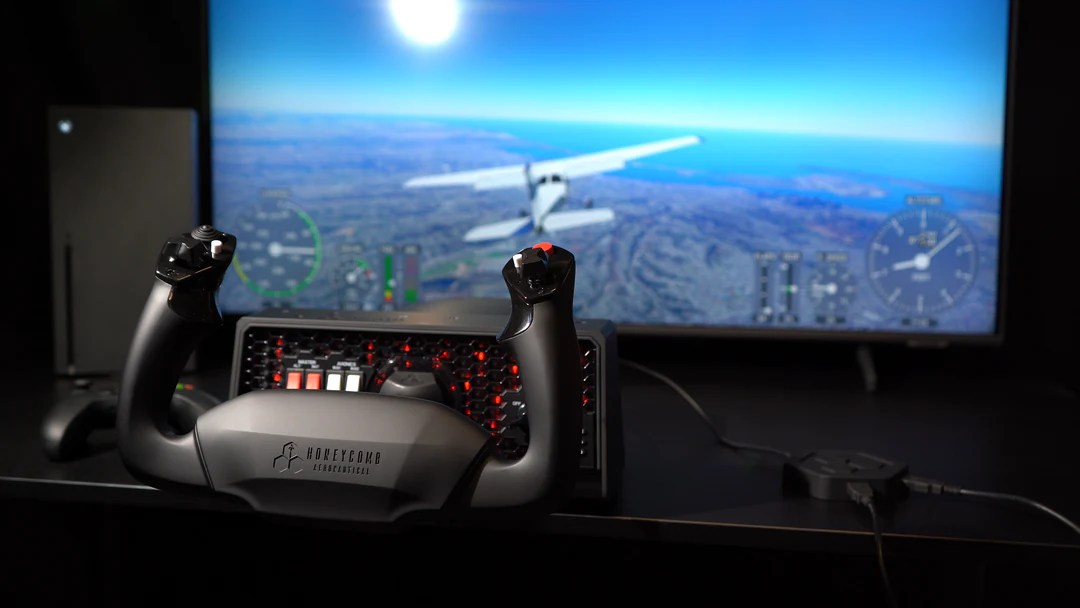
Image Credits: Honeycomb
One thing to note, Honeycomb offers two mounting options: clamps or a 3M micro-suction pad. That pad will lose its strength after a while (though you can buy replacements), but they work quite well. I think most people will opt for the clamps, though. They are easy enough to work with and while using the pads is probably a little bit faster, setting everything up with the clamps is also a one-minute job — and then everything is guaranteed to stay in place. The whole setup does take up a lot of space, though.
To use these controls on the Xbox, you’ll need Honeycomb’s $40 Xbox Hub. There isn’t really much to say here about those. It works as advertised and it does turn the Xbox version of Microsoft’s Flight Sim into quite a bit more of a fully fledged simulation than cruising around with your wireless controller.
In using the yoke and throttle, I kept missing my rudder pedals (I did eventually grab my old Logitech ones and set those up). You can set up the flight sim to handle the rudder for you, but where is the fun in that? (It won’t help you during taxi, takeoff or crosswind landings anyway.) Honeycomb has its Charlie Rudder Pedals in the works and they are currently available for preorder — but they also cost $350. I dusted off my old Thrustmaster T-Flight pedals to use in combination with the Honeycomb setup. That worked like a charm.
Given the price, you better know if you are really into flight simulators or not before you buy this. If you are, then it’s a worthwhile expense if you can afford it. If flight sims aren’t your thing, then you probably didn’t read this far anyway.
There’s a third class of potential buyers here: students working on their pilot’s license. I think the jury is still out on whether a sim is going to help you with that. There is a high chance that without your flight instructor around, you’ll learn some bad habits that you’ll have to then unlearn the expensive way — while paying for your real-world lessons. Plus, so much about flying is about feeling what the plane does and how the engine sounds — something you won’t get from a sim. But as always, talk to your friendly neighborhood CFI and discuss your needs with them.

