


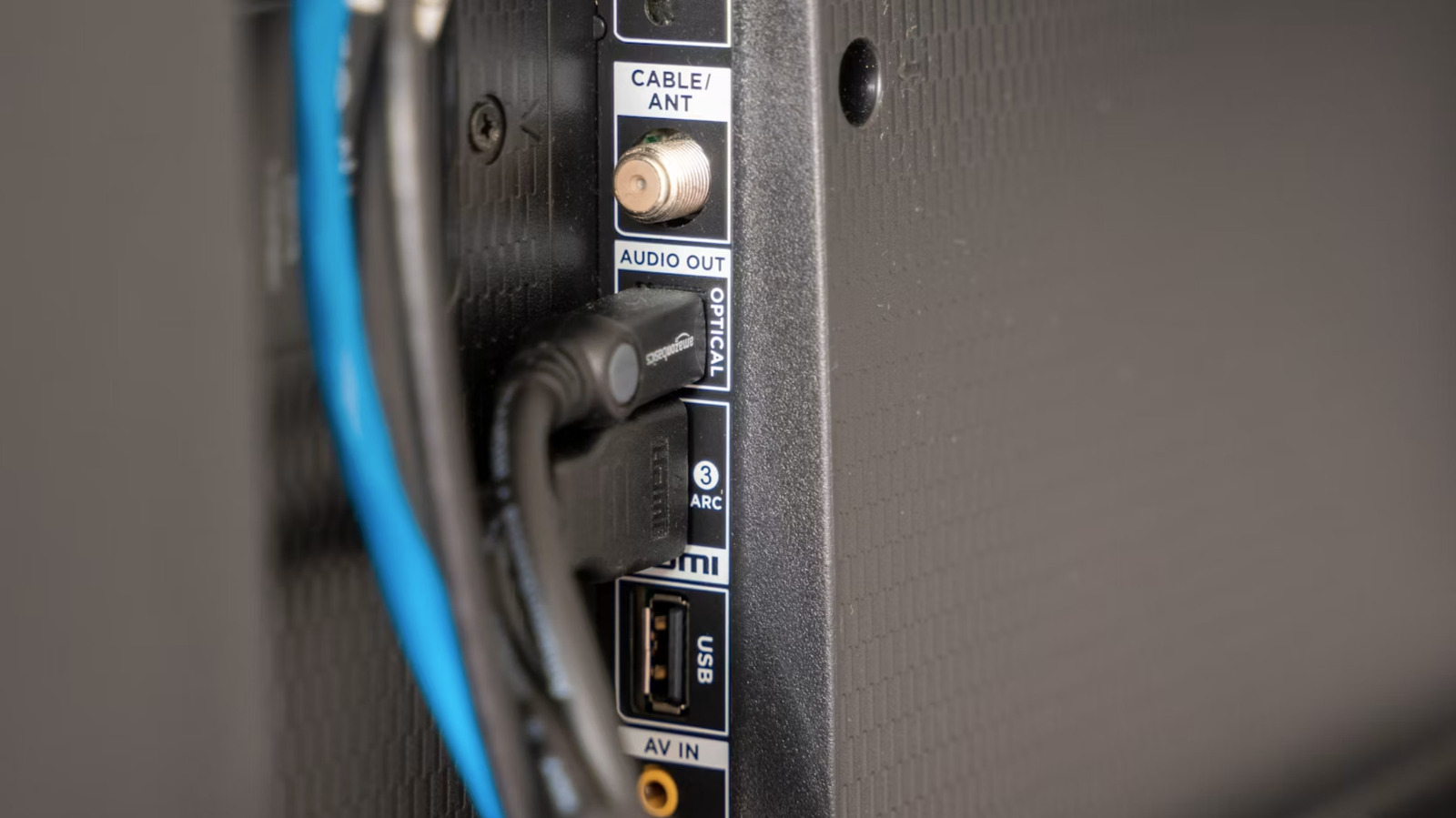
These ports are often forgotten, but can still be useful.
Modern smart TVs tend to have some USB ports that are easy to forget about, especially with those HDMIs gobbling up all of the oxygen. Most new sets feature at least one of these ports, typically located on the side or the back. The ports started showing up on TVs in the early 2000s, reaching ubiquity by 2010. Nowadays, it’s tough to find a smart TV without a USB port, either an old USB-A one or a more modern (and useful) USB-C port.
These are actually very useful and offer a range of possible functions. For instance, the newly released Amazon Fire TV Stick HD is efficient enough to be powered by a basic USB 2.0 port, eliminating the need for a dedicated power adapter. Here’s everything you can do with these ports and some suggestions on what to avoid. It’s also important to note that settings could differ between makes and models, so check the instructions for specific information.
Watch and listen to stuff without the internet
Smart TVs require the internet to do just about anything, beyond watching local and cable channels. How to keep entertained when the internet goes out? That’s where that USB port comes in. These ports support USB sticks, so you can fill them up with all of your favorite shows and movies. There’s no real limit here, as most modern TVs can handle 2TB (or larger) sticks.
There are a couple of little caveats here. Pay special attention to the initial format type of the stick itself, as most modern smart TVs can only handle FAT32 or exFAT/NTFS. The same goes for video format types. Stick to MP4, AVI or MKV to be safe, but check the TV’s instruction manual for more information.
You also don’t need access to a streaming platform like Spotify to listen to music on the TV. Just fill up a USB flash drive with songs and let the TV work its magic. Again, stick to common types to avoid any issues. We recommend MP3, WAV and AAC.
Design a light show
Smart TVs have created an entire lighting cottage industry. There are all kinds of USB-powered light strips out there intended to create a heightened mood. These illuminate the area with soft, ambient light and they automatically turn on and off with the TV. Some recent models use advanced algorithms to change the lighting along with the content being watched. This can help with immersion, especially during action-packed movies and shows.
Plug in a microphone
USB microphones are a dime a dozen and it’s likely you have one or two laying around the house right now. Connecting one to a smart TV offers a couple of features. First of all, it’s a way to access voice assistants if the remote control lacks a microphone. This offers voice control functionality via Alexa, Google Assistant or Bixby, among others.
This is also handy when using the TV for video calling, as a dedicated microphone should make everything much clearer. Finally, most smart TVs offer access to a few karaoke apps, which is like an instant party.
If you’re feeling bold
Turn the TV into a picture frame
You don’t need a TV that doubles as a picture frame in order to display some art in the home. You can simply load up some images onto a USB stick, plug it in and let the TV do the rest. It should automatically recognize the images and give an option to view them as a slideshow. Most TVs will also let you loop a single image continuously.
You could run into issues regarding file types, just as with video footage. To be safe, stick with common file types like JPEG and PNG.
That said, not all TVs are well-suited to this kind of usage — in fact, most aren’t. There’s a reason Samsung’s Frame TVs are specifically designed to run in always-on mode. Regular TVs will use a lot of power to show some artwork, and some models of OLED sets are susceptible to burn-in. So, even if you do give this a shot, shut things down when you’re not in the room and make sure the images cycle consistently so one shot doesn’t end up there forever.
Charge up gadgets (but be prepared to wait a while)
This is a good news/bad news type of situation. You can use a TV’s USB port to charge up a phone, tablet or a similar gadget in a pinch, but it will likely take a long time. That’s because most modern smart TVs ship with USB 2.0 ports, which offer a modest 5V at 500mA. This would take around seven hours to charge up a newer phone. A laptop could take around 20 hours to top off. That’s simply not practical.
However, there is a spot of good news. The industry has slowly been moving toward USB 3.0, with many newer TVs offering the feature. This will speed things up. In any event, even USB 2.0 ports are great for charging low-power devices like mobile accessories.
Some USB-powered devices won’t work
Not all USB-powered devices will work with smart TVs. This is particularly true of devices that require some kind of software driver to work. This includes stuff like USB printers, optical drives and scanners. The TV won’t recognize them when connected.
There are some workarounds, but they can be finicky. Some optical disc drives are designed with TV connections in mind, but they only work with certain models. Some Android TVs can accept sideloaded apps that accept printer connections, but the process can be cumbersome.

